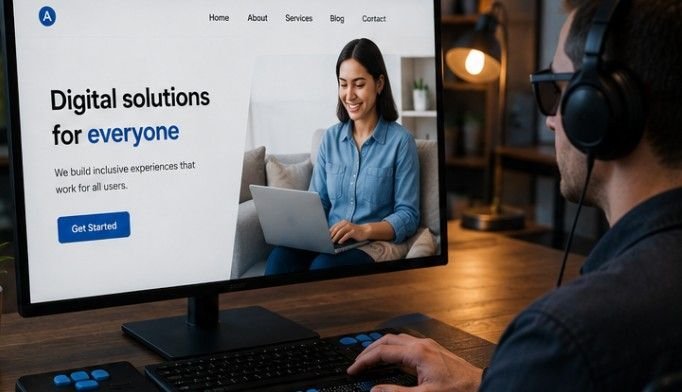
A polished website can still frustrate visitors when menus fail without a mouse, images have no descriptions, or forms provide confusing errors. During web projects, I have seen small barriers stop people from completing simple tasks. Learning how to test website accessibility helps developers catch these problems early and create digital experiences that more people can use confidently.
Key Takeaways
Automated tools provide a starting point, not a final answer. Test keyboards, screen readers, zoom, forms, and mobile layouts. Review important templates first, document every issue clearly, repair shared components, and retest all changes.
Why Testing Matters?
A quick accessibility review can save users from a digital obstacle course.
Better Experiences
Understanding how to test website accessibility matters because accessible design improves everyday usability. Clear headings, readable contrast, descriptive links, useful labels, and logical navigation help people with disabilities, older visitors, mobile users, and anyone browsing under difficult conditions.
Fewer Surprises
Finding barriers during development is usually easier than repairing them after launch. One missing label in a reusable form component may affect dozens of pages, while one accessible fix can improve them all.
Testing also gives teams objective quality standards. Developers can compare pages against the Web Content Accessibility Guidelines, commonly called WCAG, instead of relying only on personal judgment.
What Checkers Find
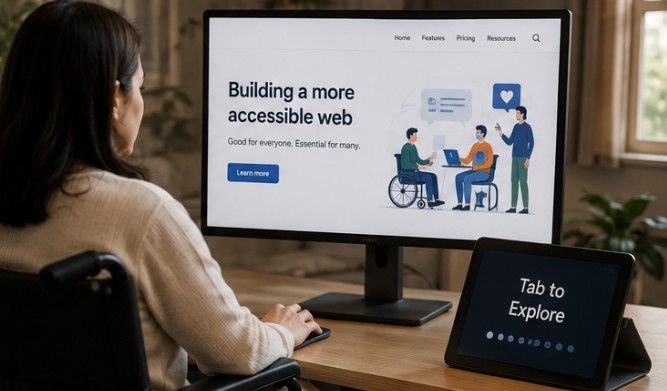
A website accessibility checker scans code and design for detectable barriers.
Automated Reviews
These tools inspect HTML, CSS, ARIA attributes, page structure, and visual styles. They can detect missing alternative text, empty buttons, unlabeled fields, incorrect headings, duplicate IDs, low contrast, and selected keyboard issues.
Visual Reports
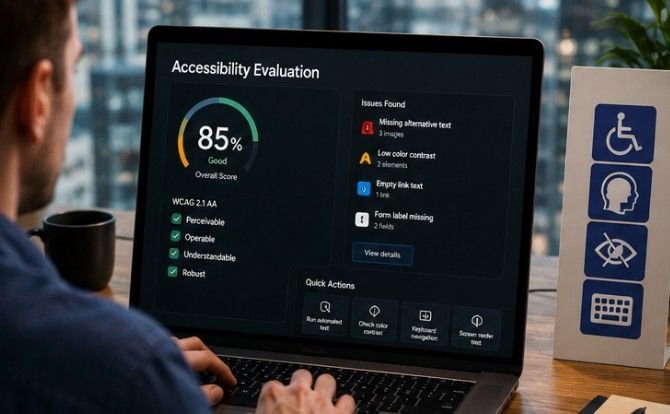
Many checkers place icons or overlays directly on the tested page. Reviewers can quickly connect each warning to a button, image, heading, link, or form field.
Do not treat the overall score as a simple pass or fail. Inspect every error, warning, and review item because some results require human judgment.
Top Testing Tools
WAVE
WAVE lets users enter a public URL and see visual accessibility feedback on the page. It highlights errors, alerts, structural elements, contrast concerns, and ARIA information.
axe DevTools
axe DevTools is a browser extension for deeper technical inspection. It identifies rule violations, highlights affected code, and offers guidance for correcting common failures.
Accessibility Insights
Microsoft Accessibility Insights combines automated checks with guided manual testing. Its FastPass feature catches common failures, while tab-stop testing helps reviewers examine keyboard focus order and visibility.
accessScan
accessScan provides a quick accessibility snapshot mapped to current WCAG criteria. It can reveal broad patterns and help teams decide which pages need deeper investigation.
AudioEye
The AudioEye Accessibility Checker reviews common accessibility and ADA-related metrics. It can quickly expose technical barriers and provide an overview of page issues.
How to Test Website Accessibility
This practical sequence combines fast scanning with meaningful human review.
Choose Key Pages
Start with the homepage, popular landing pages, contact forms, login screens, checkout flows, search results, and one example of every template. Include pages containing videos, pop-ups, tables, sliders, filters, or custom widgets.
Run Automated Scans
Scan each selected page with WAVE, axe DevTools, Accessibility Insights, or another trusted checker. Review every warning, locate the affected element, and inspect the code before making changes.
Test open menus, validation errors, modal windows, filters, and expanded accordions because dynamic states can contain problems hidden during initial loading.
Test the Keyboard
Put the mouse aside and move through the page with Tab and Shift plus Tab. Every interactive element should receive visible focus in a logical sequence.
Use Enter or Space to activate controls and Escape to close dialogs. Confirm that focus never becomes trapped and that skip-navigation links work.
Use a Screen Reader
Test with NVDA on Windows, VoiceOver on Apple devices, or TalkBack on Android. Navigate through headings, links, buttons, landmarks, and form controls.
Listen for meaningful labels, logical heading levels, useful image descriptions, and understandable errors. Controls should announce their purpose, role, and current state.
Check Zoom and Forms
Increase browser zoom to 200 percent and 400 percent. Text, menus, forms, and buttons should remain readable without overlapping, disappearing, or requiring unnecessary horizontal scrolling.
Every form field needs a visible label. Error messages should identify the problem, explain the correction, and connect to the affected input.
Review Media and Mobile
Videos need accurate captions, while important audio needs a transcript or equivalent alternative. Animations should include pause controls and respect reduced-motion preferences when possible.
Automated Scan Limits
Partial Coverage
Industry guidance often estimates that automated tools detect roughly 30 to 40 percent of potential barriers. They perform well with machine-readable problems such as missing attributes, invalid markup, and measurable contrast failures.
They cannot reliably judge whether alternative text is useful, instructions are understandable, or a workflow feels confusing.
Human Review
Manual testing provides context. A checker may confirm that an image has alt text, but a person must decide whether that description communicates the image’s purpose.
Task-based testing with screen reader users, keyboard users, magnification users, and people with cognitive disabilities can reveal barriers developers overlook.
Legal Limits
Passing an automated scan does not guarantee compliance with the ADA, European Accessibility Act, or other laws. Standards and legal duties may vary by organization and location.
Treat scans as evidence within a wider accessibility program, not as legal certification.
Fix and Retest
Clear documentation turns test findings into useful development tasks.
Report Clearly
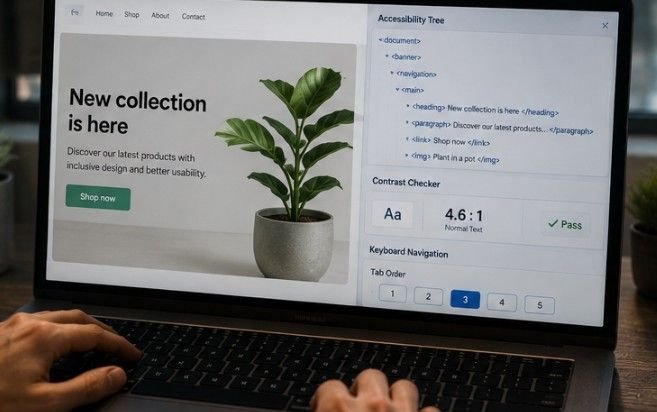
Record the page URL, affected element, browser, device, assistive technology, WCAG criterion, reproduction steps, expected result, and actual result. Add screenshots or recordings where helpful.
Prioritize barriers that block navigation, registration, purchasing, payment, account access, or support.
Repair Root Causes
Fix shared components before isolated pages. Prefer native HTML because it includes valuable keyboard and assistive-technology behavior.
Use ARIA only when native elements cannot communicate the necessary role, name, state, or relationship.
Test Again
Repeat the original test after every repair. Run the scanner again, use the keyboard, and check the component with a screen reader. Keep the issue open until the fix works across required browsers, devices, and assistive technologies.
Also Read: How to convert Javascript to Typescript?
Frequently Asked Questions
1. Can Accessibility Testing Be Free?
Yes. WAVE, Lighthouse, axe DevTools, NVDA, VoiceOver, and Accessibility Insights offer free testing options, although complete reviews still need manual checks, context, and real-user feedback.
2. Is Lighthouse Enough?
No. Lighthouse catches selected technical failures, but it cannot fully assess meaningful alt text, screen reader flow, keyboard usability, understandable instructions, or complex customer journeys.
3. How Often Should Testing Happen?
Test during design and development, before major releases, after platform or plugin changes, and whenever important templates, components, content, or user journeys are updated.
4. Which Standard Should I Follow?
WCAG 2.2 is the leading international accessibility standard. Many organizations target Level AA, although specific legal, contractual, regional, and industry requirements may differ.
Make Every Click Count
Knowing how to test website accessibility gives web teams a repeatable process for building better digital experiences. Start with automated tools, then add keyboard checks, screen readers, zoom, forms, mobile testing, and real-user feedback. Document barriers clearly, repair shared components, and retest every change. Accessibility is not a final checkbox. It is an essential part of responsible, useful, user-focused web development.
Leave a Reply